Your mission control for reviewing, managing, and acting on every voice response — all in one place.
📥 Inbox
The Inbox is where all your voice responses come to life. Every time someone fills out one of your intake links, a new case appears here — complete with transcriptions, AI insights, and tools to take action.
Think of it as a smart, purpose‑built command centre for your feedback. 🎯
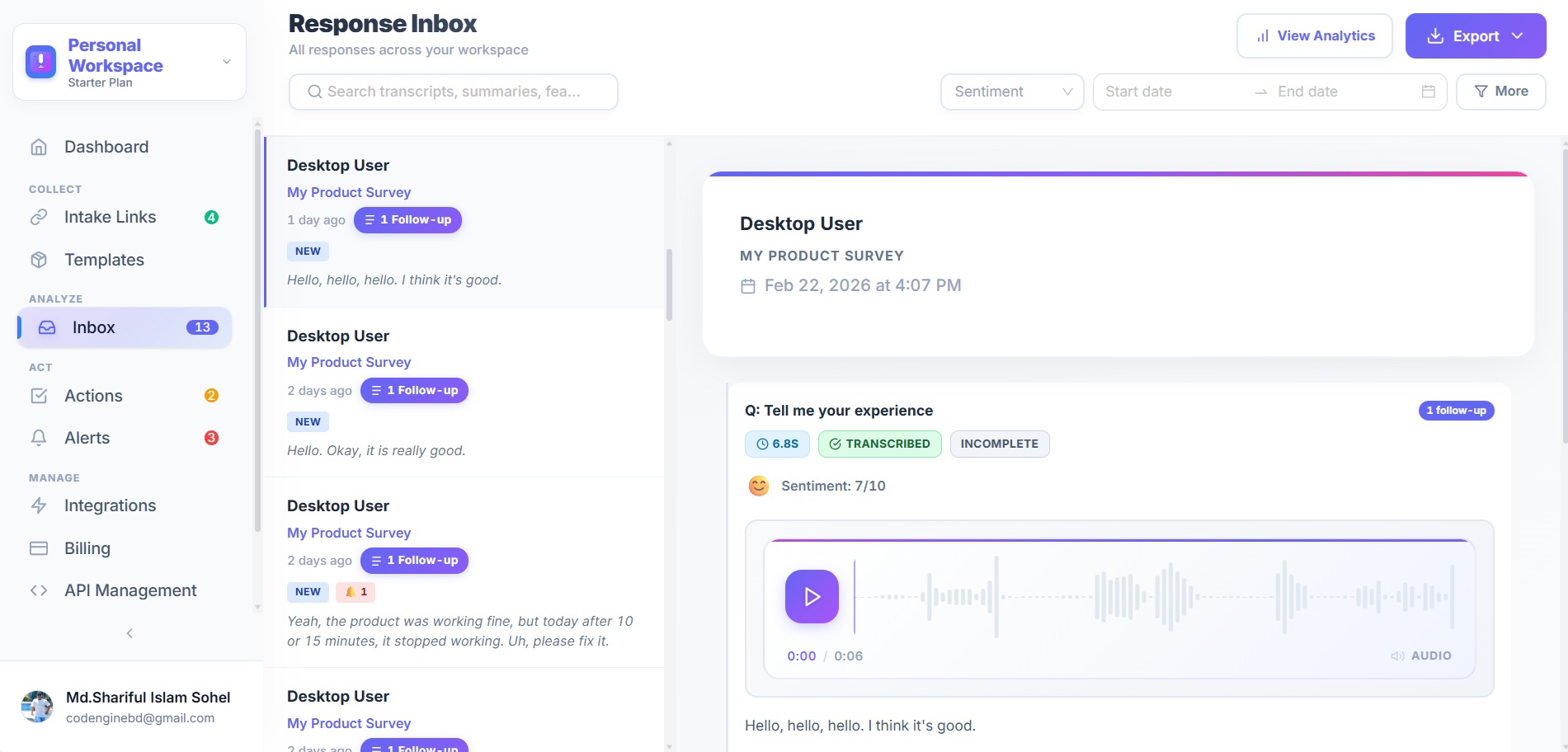
Here's what the Inbox looks like:
📋 The Case List
When you open the Inbox from the sidebar, you'll see a clean, scannable table of all cases across your workspace:
| Column | What it shows |
|---|---|
| Case | The intake link name and an AI‑generated summary preview. An 🔴 overdue dot appears if any actions or alerts have passed their deadline. |
| Status | The current status badge (see status options below). |
| Priority | The priority level — colour‑coded for quick scanning. |
| Actions / Alerts | Counts of open actions (✓) and open alerts (🔔) attached to the case. |
| Deadline | The nearest upcoming deadline — shows "Overdue", "in 3h", "in 2d", etc. |
| Date | When the response was submitted. |
Click any row to open the full case detail.
🔍 Filtering & Search
Narrow down exactly what you're looking for using the filter bar at the top:
| Filter | Options |
|---|---|
| Status | All, New, In Progress, Waiting, Resolved, Closed, Spam |
| Priority | All, Urgent, High, Normal, Low |
| Alerts | All, Has open alerts |
| Overdue | All, Overdue only |
| Search | Free‑text search across link names and AI summaries |
Filters combine together, so you can quickly find things like "all urgent cases with open alerts" or "overdue cases from a specific form".
📄 Case Detail View
Click into any case and you'll see a polished two‑column layout with everything you need:
Left Column — Responses & Actions
🏷️ Case Header
At the top you'll find:
- Link name — Which intake form this response came from.
- Status & Priority selectors — Change them instantly with inline dropdowns.
- 🤖 AI Summary — A concise, AI‑generated summary of what the respondent said, shown in a highlighted card.
- AI Metadata — Sentiment (positive/neutral/negative/mixed), urgency score (1–10), and auto‑detected category.
🎤 Responses
All answers are displayed in order, each in its own card:
- Question prompt — The exact question that was asked.
- Answer — Transcribed voice text, typed text, selected choices, or structured values.
- Duration — For voice answers, shows the recording length.
- Follow‑up threads — If AI probing was enabled, follow‑up Q&A pairs are nested below the original answer with a clear visual thread.
✅ Actions
A checklist of follow‑up tasks tied to this case:
- Check off actions as you complete them — they get a strikethrough.
- Due dates with colour‑coded overdue indicators.
- Priority badges (Low, Normal, High, Urgent) on each action.
- 💡 Suggested actions — AI‑recommended follow‑ups from the template. Click Add to convert them into real actions.
- + Add Action — Create custom actions with a title, priority, and optional due date.
Right Column — Alerts
🔔 Alerts
AI‑triggered notifications and manual alerts for this case:
- Severity levels with distinct icons:
- ℹ️ Info — FYI, no immediate action needed.
- ⚠️ Warning — Worth attention soon.
- 🚨 Critical — Needs immediate action.
- Acknowledge — Mark an alert as seen without resolving it.
- Resolve — Close the alert when it's been addressed.
- Due dates — Optional deadlines with overdue highlighting.
- + Add Alert — Create manual alerts with a title, description, severity, and due date.
🏷️ Statuses & Priorities
Case Statuses
| Status | Colour | When to use |
|---|---|---|
| New | 🔵 Blue | Fresh response, not yet reviewed. |
| In Progress | 🟠 Orange | You or a teammate is actively working on it. |
| Waiting | 🟣 Purple | Blocked — waiting for respondent reply or external input. |
| Resolved | 🟢 Green | All actions completed, feedback addressed. |
| Closed | ⚪ Grey | Archived — no further action needed. |
| Spam | 🔴 Red | Flagged as spam or irrelevant. |
Priority Levels
| Priority | Colour | Use for |
|---|---|---|
| Low | 🟢 Green | Nice‑to‑know feedback, no rush. |
| Normal | ⚪ Grey | Standard — review when convenient. |
| High | 🟠 Orange | Important feedback needing prompt attention. |
| Urgent | 🔴 Red | Critical issue — act immediately. |
🧠 AI‑Powered Insights
Every case is enriched with AI analysis — no manual tagging required:
| Insight | What it tells you |
|---|---|
| AI Summary | A one‑line summary of what the respondent said across all questions. |
| Sentiment | Overall tone — Positive, Neutral, Negative, or Mixed. |
| Urgency Score | A 1–10 rating of how urgently this feedback needs attention. |
| Category | Auto‑detected category (e.g. bug report, feature request, complaint). |
| Actionable Flag | Whether the feedback suggests a concrete follow‑up action. |
| Key Topics | Automatically extracted themes and subjects. |
These insights power the filtering, sorting, and alert systems — so the most important feedback naturally rises to the top.
💡 Tips for Inbox Power Users
- Start with "New" + "Urgent" — Filter for new, urgent cases first to catch critical feedback immediately.
- Use AI summaries to triage — You can scan dozens of responses in seconds without opening each one.
- Create actions, not mental notes — Turn every "I should follow up on this" into a tracked action with a due date.
- Let alerts work for you — Set up alert rules so the system flags important patterns automatically. You don't have to review every single response manually.
- Resolve closed‑loop — When you've addressed feedback, mark cases as Resolved. This keeps your Inbox clean and your metrics accurate.
- Check the overdue filter daily — Stay on top of deadlines by filtering for overdue items each morning.
🎓 What's Next?
- Alerts — Learn how to set up automatic alert rules.
- Intake Page — Customise what respondents see.
- Templates — Browse pre‑built form templates.
- Webhooks — Push new responses to external tools in real‑time.
- Key Concepts — Review all platform building blocks.