Everything about the public voice intake page — what your respondents see, how the 7 layout templates work, TTS read‑aloud, tracking, Smart Content Blocks, and how to make it yours.
The Intake Page
The intake page is the star of the show — it's the beautiful, distraction‑free page where your respondents interact with your form. Every intake link you create automatically generates one of these pages, ready to share.
Respondents don't need a Sayify account. They just open the link, respond, and submit. It's that simple.
Here's what a typical intake page looks like:
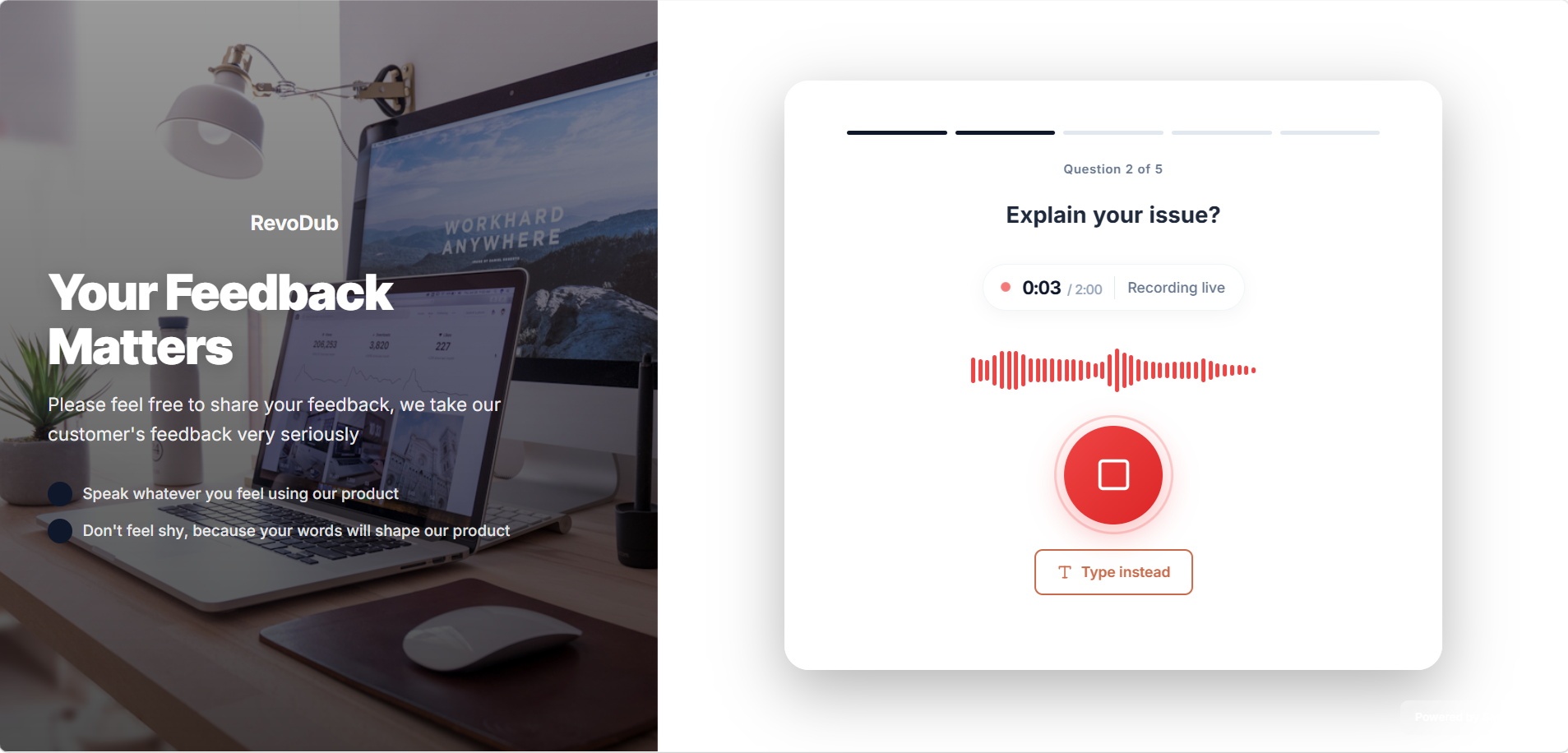
How to Access It
Every intake link lives at a public URL like this:
https://your-subdomain.sayify.pro/i/your-custom-slug
For example, if your subdomain is acme and your slug is product-feedback:
https://acme.sayify.pro/i/product-feedback
Tip: Share this URL anywhere — email, Slack, SMS, QR code, or embed it on your website. It works on any device, no app install required.
If you've set up a custom domain (e.g. feedback.acme.com), respondents access the page there instead — see Custom Domains.
The Respondent Journey
Here's exactly what your respondents experience, step by step:
1. Loading Screen
A polished, animated loading screen appears while Sayify prepares the experience. It sets a professional first impression with smooth animations and your brand colours.
2. Welcome Screen
The respondent sees your welcome page — a customisable screen with your form title, subtitle, and a call‑to‑action button. Optionally includes:
- Consent checkbox — Require agreement before starting (e.g. GDPR consent).
- Terms & Privacy links — Link to your legal pages.
- Icon emoji — A visual accent above the title.
- Template gallery — Choose from pre‑designed welcome page templates for a polished look.
3. One Question at a Time
Questions are presented one at a time in a clean, focused layout. This keeps the experience calm and unrushed. A progress indicator at the top shows how far along they are.
Sayify supports 30+ response types across 7 categories — from voice recordings and file uploads to NPS scales, signatures, and payment fields. Each type is rendered with an optimised, mobile‑friendly UI.
4. AI Follow‑Up (Optional)
If you've enabled dynamic AI probing, something magical happens after a voice or text answer: the AI listens to what the respondent said and may ask a smart follow‑up question to go deeper. The respondent can answer or skip — no pressure.
5. Smart Help (Optional)
If you've connected Knowledge Bases to your form, respondents see a "Need Help?" button on every question. Clicking it opens an AI‑powered assistant that searches your knowledge base and provides instant, contextual answers — reducing support tickets and improving response quality.
6. Voice Read‑Aloud (Optional)
When TTS (Text‑to‑Speech) Read‑Aloud is enabled, Sayify reads each question aloud using a natural AI voice. Respondents hear the question while seeing it on screen — great for accessibility, complex questions, or hands‑free workflows.
7. AI Evaluating
Behind the scenes, Sayify's AI analyses each voice answer in real‑time — transcribing, detecting sentiment, and extracting structured data. The respondent sees a subtle "evaluating" animation while this happens (it only takes a moment).
8. Thank You Screen
After the last question is submitted, a success screen appears with your custom thank‑you page — including:
- Title & message — Personalised completion text.
- Icon — Customisable emoji with colour picker.
- Confetti — Celebratory particle animation (toggleable).
- Redirect URL — Automatically send respondents to another page after a configurable delay (1–30 seconds).
- Conditional routing — Show different thank‑you pages based on AI scores or form answers (see Conditional Thank You).
- Analytics events — Fire Meta Pixel and GA4 conversion events on submission.
Layout Templates
Sayify offers 7 layout templates for the intake page. Each template changes the overall page structure and visual hierarchy. Choose the one that best fits your brand and use case.
| Template | Best For | Description |
|---|---|---|
| Centered Card (Default) | Quick surveys, simple forms | Clean, focused card centred on a vibrant gradient background. |
| Hero Split | Enterprise & B2B | Two‑column layout: branded hero section on the left (headline, description, trust bullets) with form content on the right. |
| Landing Page | Marketing & lead gen | Full landing page with hero image, value proposition, then the form below. Pre‑intake context before the first question. |
| B2B Form | Client intake, structured data | Clean multi‑section layout with branded sidebar, trust bullets, and a professional card form. |
| Studio | Video testimonials, recordings | Dark, camera‑centric UI optimised for voice and video capture. Immersive, distraction‑free. |
| Compact Builder | Space‑saving, embedded | Compact nested layout — all questions visible on one page. Great for embedding in existing pages. |
| Voice Note | Voice‑first, single‑question | Fullscreen immersive voice experience. A single large microphone button — nothing else. |
Tip: Choose your layout template in Settings → Branding → Page Layout, or configure it per‑form in the Form Builder Share step.
Visual Style Presets
Each layout template supports visual style presets — pre‑configured colour palettes, font families, and background styles that you can apply with one click. Choose from curated presets or create a fully custom palette with your own primary/accent colours.
Smart Content Blocks
Boost conversion rates by enabling optional trust‑building elements on any layout:
| Block | What it does |
|---|---|
| Privacy Note Banner | Assure respondents their data is safe |
| Secure Submission Badge | Highlight 256‑bit encryption |
| Social Proof Badge | Show how many others have responded |
| Rating Highlights | Display your average 5‑star feedback rating |
Each block has a customisable text label (e.g. "Join 10,000+ others who have shared their voice").
Customising the Experience
You control how the intake page looks and behaves through your Form Builder settings and Branding configuration.
Welcome Page Settings
Configured per‑form in the Form Builder → Settings → Welcome & Thank You:
| Setting | What it does |
|---|---|
| Title | The headline respondents see (defaults to form name). |
| Subtitle | Supporting context — explain what you're collecting and why. |
| Button Text | Call‑to‑action label (default: "Get Started"). |
| Icon Emoji | Optional visual accent above the title. |
| Require Consent | Toggle a mandatory checkbox before starting the form. |
| Consent Label | Custom text for the consent checkbox (e.g. "I agree to the Terms & Conditions"). |
| Terms URL | Link to your Terms of Service page. |
| Privacy URL | Link to your Privacy Policy page. |
| Template | Choose from a gallery of pre‑designed welcome page templates. |
Thank You Page Settings
| Setting | What it does |
|---|---|
| Title | Headline shown after submission (default: "Thank You!"). |
| Message | Custom completion message (max 200 characters). |
| Icon Emoji | Choose from 12 geometric icons or type any emoji. |
| Icon Colour | Pick from 8 curated colours (Dark, Slate, Emerald, Blue, Violet, Rose, Amber, Teal). |
| Confetti | Toggle celebratory particle animation. |
| Show Icon | Toggle the icon circle above the title. |
| Redirect URL | Automatically redirect respondents after viewing the page. |
| Redirect Delay | How many seconds to show the thank‑you page before redirecting (1–30s, default: 5). |
| Meta Pixel Event | Fire a specific Meta/Facebook conversion event on this page. |
| GA4 Event | Fire a specific Google Analytics 4 event on this page. |
| Conditional Routing | Show different pages based on AI scores — see Conditional Thank You. |
Tenant Branding
For a fully branded experience, configure these in Settings → Branding:
| Branding Option | What it controls |
|---|---|
| Brand Name | Your company or product name, shown in the header. |
| Logo | Your logo displayed at the top of the intake page. |
| Favicon | Custom browser tab icon (Pro plan). |
| Primary Colour | Applied to buttons, accents, and the progress bar. |
| Accent Colour | Used for gradients and secondary highlights. |
| Background Style | Solid colour, gradient, or custom background image. |
| Font Family | Pick a typeface that matches your brand. |
| Button Style | Rounded, square, or pill‑shaped buttons. |
| Powered by Sayify | Toggle the "Powered by Sayify" badge on or off (Pro plan). |
Voice Read‑Aloud (TTS)
Enable Text‑to‑Speech to have Sayify read your questions aloud using a natural AI voice. This is especially valuable for:
- Accessibility — Support visually impaired respondents.
- Complex questions — Help respondents understand longer prompts.
- Hands‑free use — Field workers, drivers, or anyone on the go.
| Setting | What it controls |
|---|---|
| Enabled | Toggle TTS on or off for this form. |
| Voice Model | Choose from available AI voice models (e.g. Kore). |
| Language | Set the spoken language (e.g. en‑US). |
| Speed | Playback speed multiplier (0.5× – 2.0×). |
| Auto‑Play | Automatically read questions as they appear. |
| Custom Prompt | Optional instructions to fine‑tune the AI voice style. |
Note: Voice Read‑Aloud is available in Conversational mode layouts only. It is not available when using the Compact Builder layout (inline mode).
Tracking & Analytics
Sayify supports Meta Pixel and Google Analytics 4 event tracking directly on your intake pages. Configure tracking in the Form Builder → Settings → Tracking & Analytics tab.
Tracking IDs
Enter your Meta Pixel ID and GA4 Measurement ID to auto‑inject the tracking scripts on your form's public page. If you've already installed them on your site (for embedded forms), leave these blank.
Per‑Event Configuration
Configure which events fire at each stage of the form lifecycle:
| Event | When it fires |
|---|---|
| Form View | When the form page loads |
| Form Start | When the respondent clicks "Get Started" |
| Form Submit | On every successful submission (your main conversion event) |
Each event can trigger independent Meta Pixel and GA4 events — for example, fire ViewContent on view, InitiateCheckout on start, and Lead on submit.
Tip: If you use Conditional Thank You Pages, each conditional outcome can fire its own per‑outcome analytics events in addition to the Form Submit event. This enables ad optimisation by lead quality.
Hidden URL Parameters
Silently capture metadata by appending URL query parameters. For example:
https://acme.sayify.pro/i/product-feedback?user_id=123&campaign=spring_sale
The values are automatically captured with every submission and included in your response data, webhook payloads, and Destinations exports — without the respondent seeing anything.
Configure hidden fields in Form Builder → Settings → Hidden Variables.
Mobile‑Friendly & Embeddable
The intake page is designed to work beautifully everywhere:
- Fully responsive — Looks great on phones, tablets, and desktops. Voice recording works on all modern mobile browsers.
- Embeddable — The page auto‑detects when it's loaded inside an
<iframe>and adapts its layout accordingly. Sayify offers 9 embed modes (popup, slider, chat bubble, inline, and more) via the Widget Playground. - Fast — Lightweight and optimised for quick load times, even on slow connections.
Error Handling
Sayify handles errors gracefully so respondents are never left confused:
| Scenario | What the Respondent Sees |
|---|---|
| Link not found | A friendly "Link Not Found" page with a clear explanation. |
| Link paused/inactive | A message explaining the form is currently not accepting responses. |
| Network issue | Helpful inline notices with a prompt to retry. |
| Transcription trouble | An automatic fallback to text input — the respondent can type instead of re‑recording. |
| Submission error | Responses are still captured; the respondent sees a graceful completion. |
Best Practices for Great Intake Pages
Here are some tips to maximise response rates and quality:
- Write a warm description — Tell respondents what you're collecting and why their input matters. People respond better when they feel heard.
- Keep it short — 3–5 questions is the sweet spot. Every extra question reduces completion rates.
- Lead with voice — Put your most important, open‑ended question first while respondents are freshest.
- Enable AI follow‑ups — Dynamic probing gets you 2–3× richer responses without adding more questions.
- Brand it — Adding your logo, colours, and a layout template makes the experience feel professional and trustworthy.
- Add trust blocks — Enable the Privacy Note or Social Proof badge to boost completion rates.
- Use a thank‑you redirect — Send respondents back to your website after submission for a seamless experience.
- Enable TTS for accessibility — Voice Read‑Aloud makes your forms accessible to visually impaired respondents and hands‑free users.
- Set up conversion tracking — Connect Meta Pixel and GA4 to measure ROI on your forms.
- Use hidden fields — Pass campaign, user, or source data via URL parameters to enrich your response data.
- Test on mobile — Most respondents will use their phones. Make sure it feels great.
What's Next?
- Form Builder — Learn how to create and configure your intake forms step by step.
- Templates — Browse pre‑built form templates for your industry.
- Conditional Thank You — Route respondents to different pages based on AI scores.
- Branding — Dive deeper into layout templates, style presets, and visual customisation.
- Inbox — Learn how to review and manage incoming responses.
- Alerts — Set up AI‑powered notifications for new feedback.
- Key Concepts — Review all platform building blocks.