Customize Sayify.pro with your logo, colors, domain, and sender identity to match your brand.
Branding
Make every public Sayify page feel like part of your own product. Branding & Domain lets you control the page address, visual style, layout, and email sender details from one place.
Open Branding & Domain from the sidebar. The page is organized into four tabs:
- Domain
- Branding
- Page Layout
- Email Sending
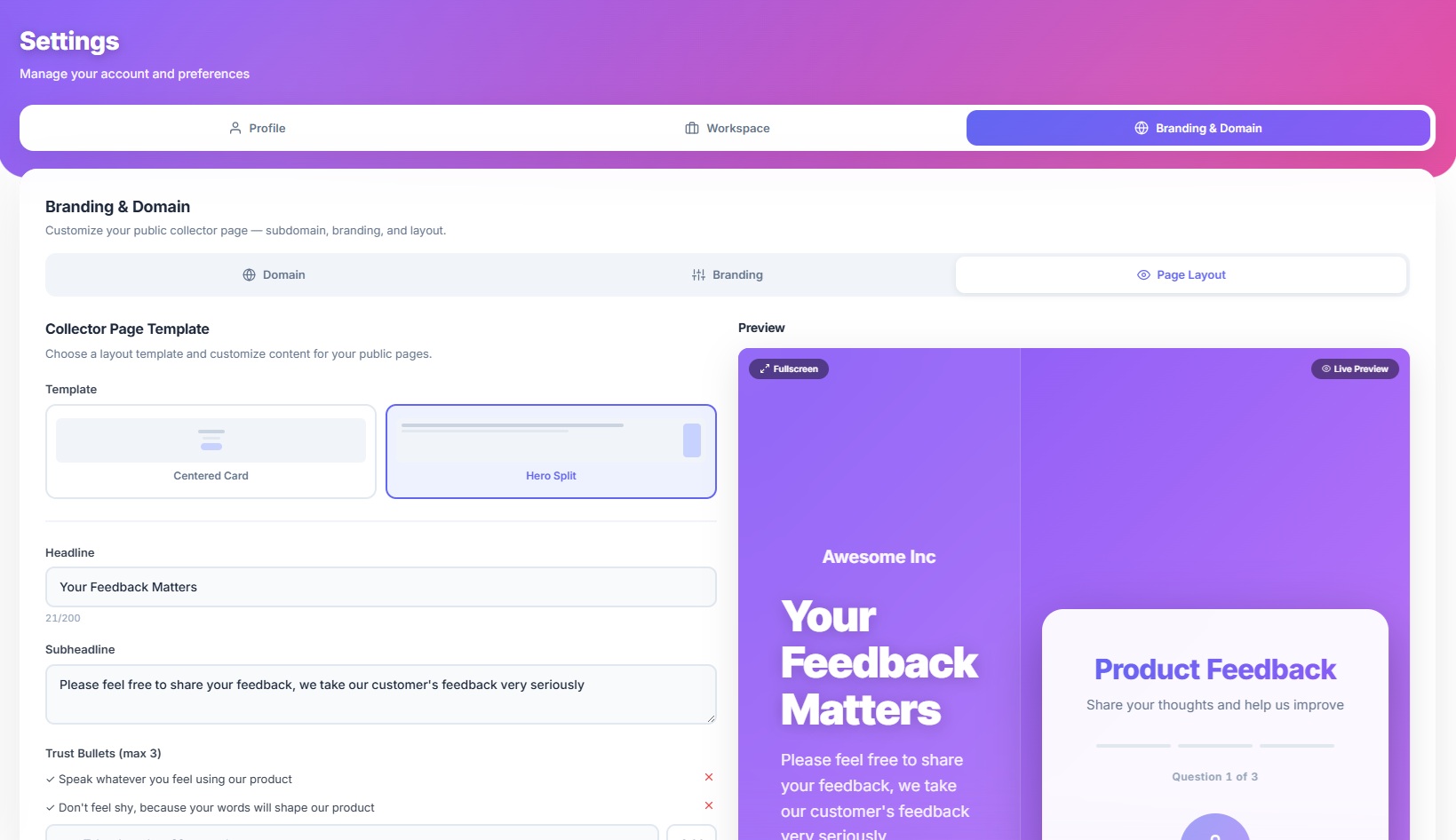
Here's what the Branding & Domain settings look like:
Tab 1 - Domain
Company Subdomain
Every workspace gets a Sayify subdomain. Your intake pages are served at:
https://your-company.sayify.pro/i/form-slug
To change your subdomain:
- Type your desired slug in the subdomain editor.
- Sayify checks availability as you type.
- If the name is taken, choose one of the suggested alternatives or try another name.
- Click Save Subdomain.
Your current live URL is shown below the editor so you can quickly open or share it.
Custom Domains
Eligible accounts can connect a client-owned domain, such as:
https://feedback.yourcompany.com
Use this when you want respondents to see your brand in the browser address bar, not a Sayify-owned URL.
To connect a custom domain:
- Go to Branding & Domain > Domain.
- Enter the subdomain you want to use, such as
feedback.yourcompany.com. - Click Add.
- Follow the DNS instructions shown in Sayify.
- Click Check setup after you update your domain provider.
Your Sayify subdomain remains available as a fallback, so existing links keep working while your custom domain is being connected.
Tab 2 - Branding
This is where you define your visual identity for public intake pages.
Brand Identity
| Setting | What it does |
|---|---|
| Brand Name | The company name shown on public intake pages. |
| Logo | Your logo at the top of the intake page. |
| Favicon | The small icon shown in the browser tab. |
| Website URL | The brand website linked from public pages when shown. |
| Support Email | The contact email shown to respondents. |
| Support URL | A help or support link for respondents. |
| Terms URL | Your terms page. |
| Privacy URL | Your privacy page. |
Colors
| Setting | What it affects |
|---|---|
| Primary Color | Buttons, links, and key accents. |
| Accent Color | Secondary highlights and supporting accents. |
Each color includes a picker and a text field, so you can use either your brand hex code or the visual selector.
Email Branding
Email branding controls what respondents see in branded emails, such as auto-responder messages.
| Setting | What it does |
|---|---|
| Email Logo | Optional logo used in emails. |
| Email Footer Text | Optional footer text for branded messages. |
Powered By Badge
Eligible plans can hide the Powered by Sayify badge for a fully white-labeled experience.
Tab 3 - Page Layout
Choose a layout template for your public intake pages. The preview updates as you make changes, so you can see the respondent experience before saving.
Centered Card
A clean, focused layout with your form content inside a centered card. This is best for simple intake forms where the respondent should focus on the question.
Hero Split
A two-column layout with a brand panel on one side and the form on the other. This works well for client intake, sales qualification, support, onboarding, and other forms where you want to add context before the respondent starts.
Hero Split includes extra settings:
| Setting | What it does |
|---|---|
| Headline | Large text on the brand panel. |
| Subheadline | Supporting text below the headline. |
| Trust Bullets | Short confidence-building points, such as "Takes less than 60 seconds". |
Tab 4 - Email Sending
Email Sending now lives inside Branding & Domain, next to your domain and brand controls.
Use this tab to:
- Verify sender email addresses, such as
hello@yourcompany.com. - Verify a sending domain so your team can send from branded addresses.
- Set the default sender name, sender email, and reply-to address.
- Review the sender identities that are ready to use in email campaigns and auto-responder messages.
After a sender is verified, you can use it in form emails, campaign emails, and branded follow-up messages.
Where Branding Applies
| Surface | Branding support |
|---|---|
| Public intake pages | Logo, colors, layout, subdomain, and custom domain. |
| Branded emails | Sender identity, email logo, footer text, and reply-to details. |
| Dashboard | Uses the standard Sayify app design. |
Branding affects respondent-facing experiences. Your internal dashboard stays consistent so your team can work across clients and workspaces without relearning the app.
Live Preview
The Branding and Page Layout tabs include a live preview. Use it to check your logo, colors, layout, and page style before saving.
You can also open the preview in fullscreen for a closer look.
Tips for Great Branding
- Use your real brand colors for primary and accent colors.
- Upload a transparent logo when possible.
- Keep favicons square for the sharpest browser display.
- Use Hero Split when you need to explain the purpose of the form before asking questions.
- Verify your sender email before sending branded campaigns.
- Use a custom domain for client-facing or agency-managed forms.
What's Next?
- Custom Domains - Learn how to connect a branded domain.
- Intake Page - See how respondents experience public forms.
- Templates - Browse pre-built form templates.
- Key Concepts - Review all platform building blocks.